Epson printer – Cash Drawer setup for Mac
First, install printer driver software from Epson. Make sure you select the right printer model e.g. TM-T20 is different to TM-T88.
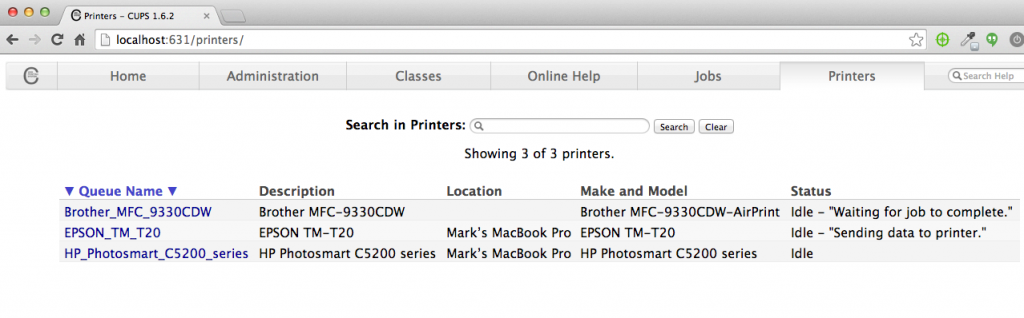
In order to kick open cash drawer, we need to set the printer option using the browser.
If cannot access the page then need to open Terminal and run the command
cupsctl WebInterface=yes
“Set Default Options” from the dropdown.
Select the “Cash Drawer Control” tab and set Cash Drawer #1 to open either BEFORE or AFTER printing.
Click “Set Default Options” to save the settings. User will need to enter username and password to save.
If user doesn’t know the Mac username, go to Terminal and type “whoami”