Unlike TM-T20, the M30 printer can add a wireless adapter.
Reseller price from Aniluin: $280+GST for the printer and $95+GST for the wireless adapter
Printer is DHCP enabled by default.
The wireless router has its own built-in SSID which you can connect to configure the printer. Default SSID is “Epson_Printer”.
Another way to configure printer is via ethernet network cable. First unplug the wireless adapter. Use network cable to connect printer to the router. Turn on printer, it should print out the IP address. Use browser to connect to this IP address to login to the printer Web Config web page. Username “epson”. Password “epson”.
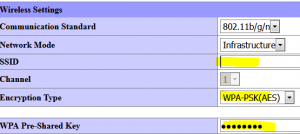
In wireless settings, enter the router’s SSID. Note – the SSID must match exactly the same and is case-sensity. Enter the wireless password of the router. Apply settings which will restart the printer. If settings are correct, it should connect to the wireless router.
For more information about the wireless adapter read OT-WL02 Technical Reference Guide
M30’s have both USB and Ethernet.
Major difference is the M30 has 203dpi resolution compared to a T88 180dpi. It just means a several more characters can fit across the paper when printing with normal text mode.
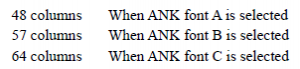
M30 also supports a FontC (most other TM printers have a FontA and B only). So when printing in normal text mode, the different fonts allow this number of chars:
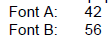
With other’s it’s usually like this:
Another feature you may want to sample is the back-feed paper saving. You can enable it in the printer so that it retracts paper after auto-cutting to remove the usual 10-15mm white border on top of receipts.
M30 also supports ePOS, so if you ever wanted to implement printing by JS/XML directly from browser to printer, this feature is now becoming standard in the new range of TM printers (network capable models).
More info about wireless settings
These are the settings you normally edit to match the network you’re wanting to connect to:
If you’re in doubt about the printer making a connection and you want to check, you can do so like this:
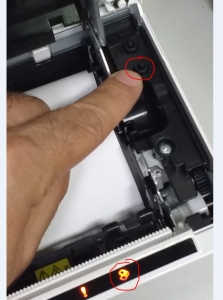
– Open paper cover
– Hold press the feed button until the paper light starts blinking (see pic below)
– Close paper cover
It will print a sheet like this:
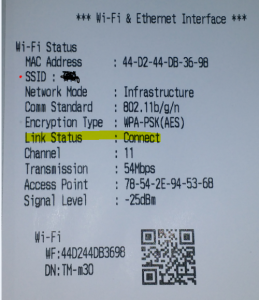
Where highlighted, if it says ‘connect’ then you’re in business, but anything else means you need to check the WiFi settings.