TeamViewer is a popular piece of software used for Internet-based remote access and support. TeamViewer software can connect to any PC or server, so you can remote control your partner’s PC as if you were sitting right in front of it.
There are two ways of using TeamViewer when supporting Sportlogic customers. Also, before we start, ensure that TeamViewer is already installed on your computer.
Method 1:
InTennis already has a version of TeamViewer built-in to the software. However, this option is only available for computers running on Windows.
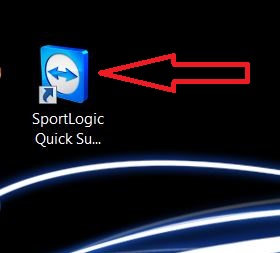
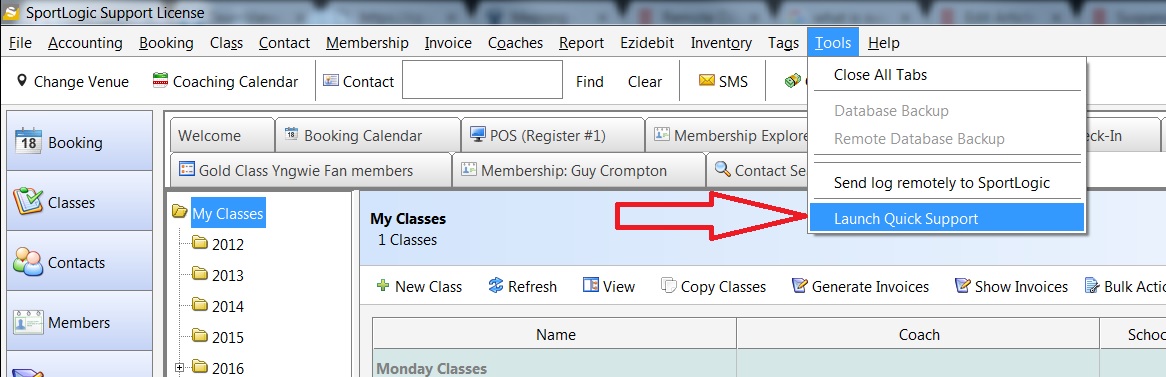
Step 1. Inform customer to launch support by either clicking on the Sportlogic Quick Support icon on the desktop or by clicking on ‘Tool’ from the menu bar and then on ‘Launch Quick Support’.
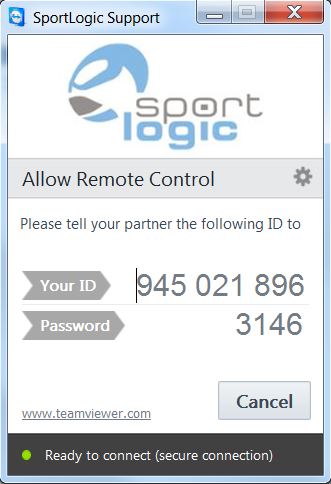
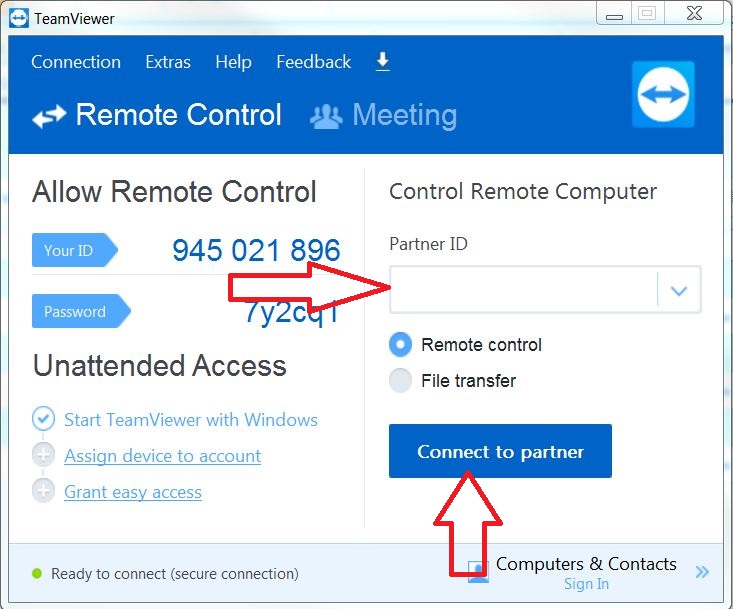
Step 2. This action would open a window as shown below. Ask the customer to read out the ID number and the password.
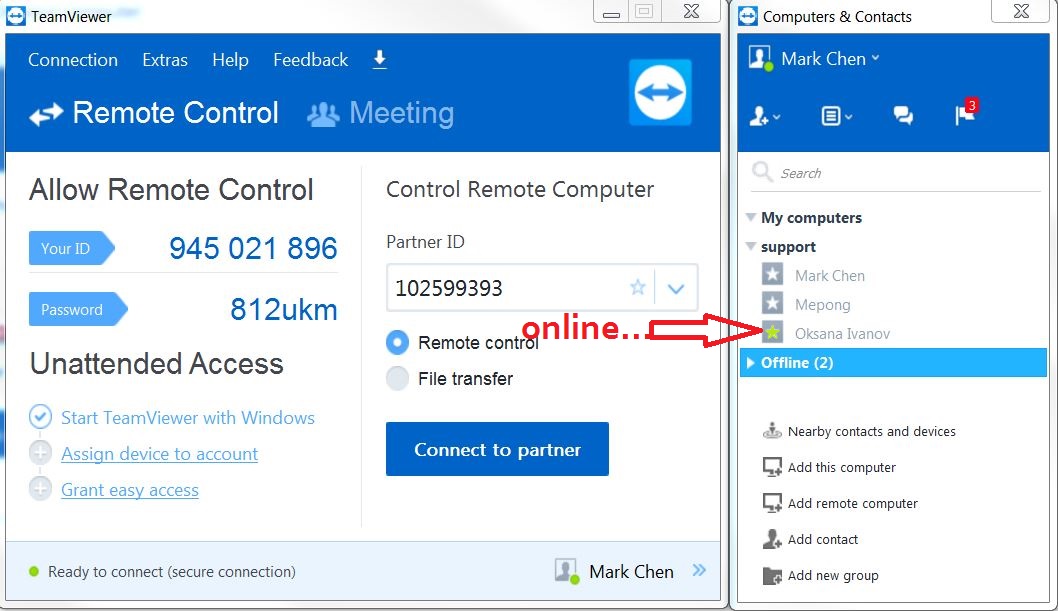
Step 3. Launch TeamViewer from your computer and enter the ID number given by the customer and click on ‘Connect to Partner’ and then on the new window enter the password provided by the customer. You should be able to access the customer’s computer now.
Method 2:
This method of can be used if the customer has issues launching the built-in Quick support as explained in the first method. Also, this method should be used for Mac computers as the inTennis version for Mac does not have the Quick Support built in to the software. For this method to work, you would need to be logged in to TeamViewer.
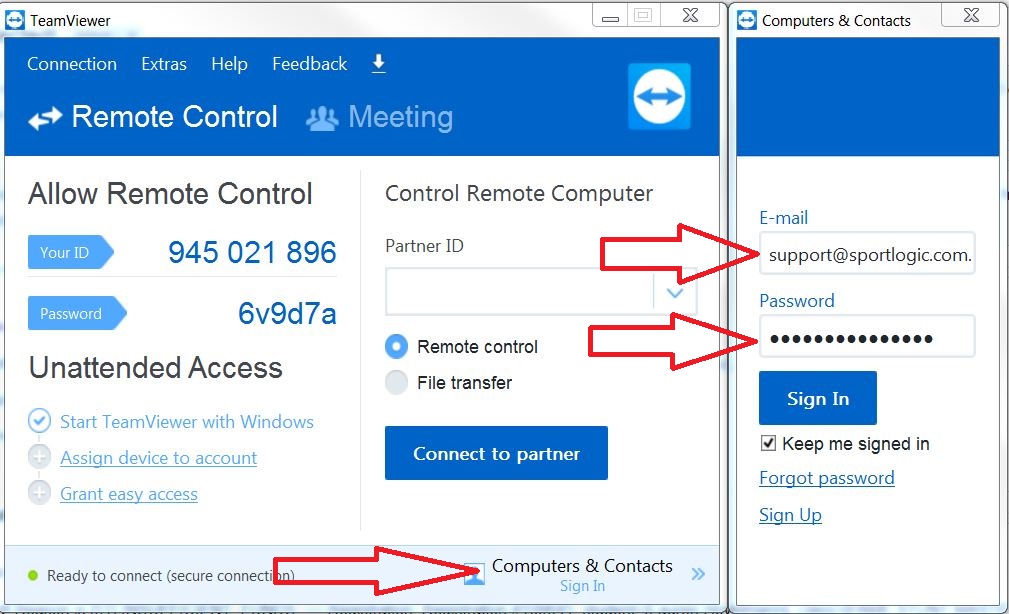
Step 1. Launch TeamViewer from your computer. Click on ‘sign in’, enter your credentials and log in as shown below.
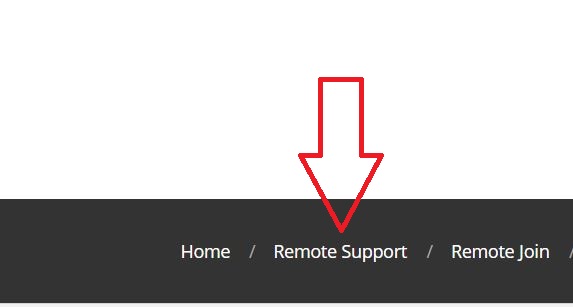
Step 2. Inform the customer to open the site help.sportlogic.com.au then scroll down to the bottom of the page and click on Remote Support.
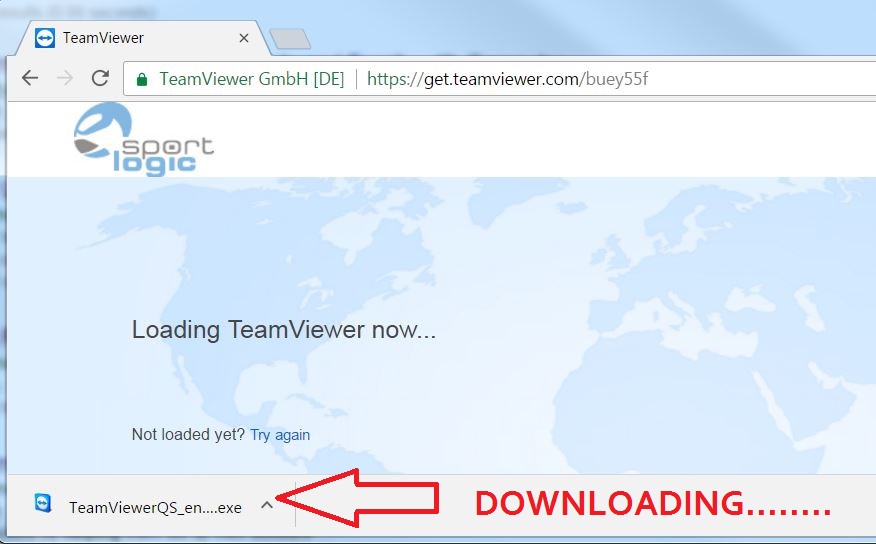
Step 3. This action will start downloading the TeamViewer client software as shown below. After the download completes click on the icon in the lower left part of the screen and click on ‘run’.
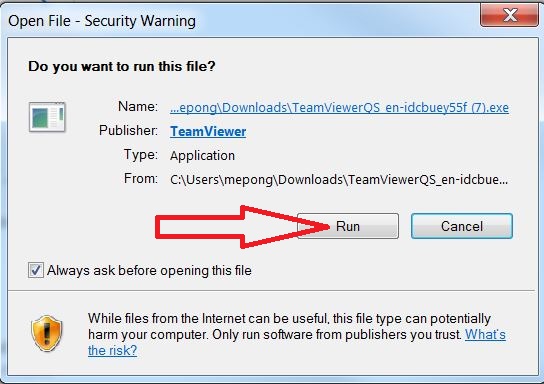
Step 4. The customer will now see a pop-up window as shown below and you will see that the customer is online on your computer.
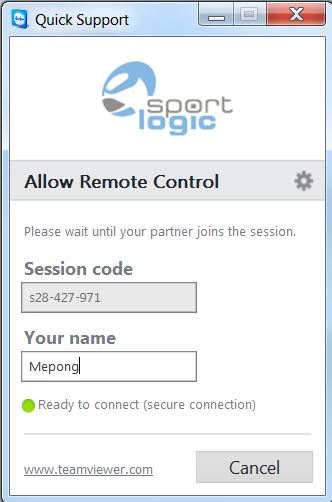
On your computer, you will see that the user is showing as online and you should be able to remotely connect now.