Open developer.xero.com/myapps in a new tab after logging in to customer’s xero account
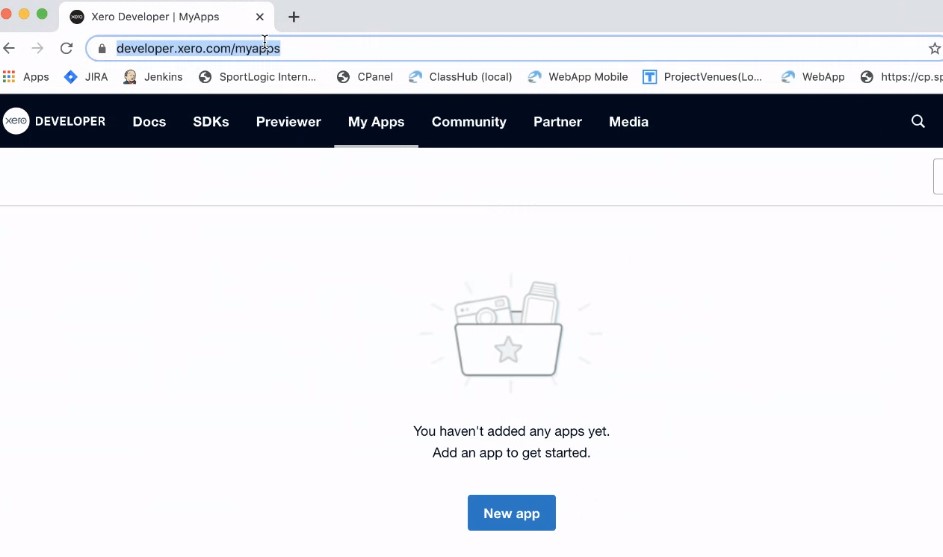
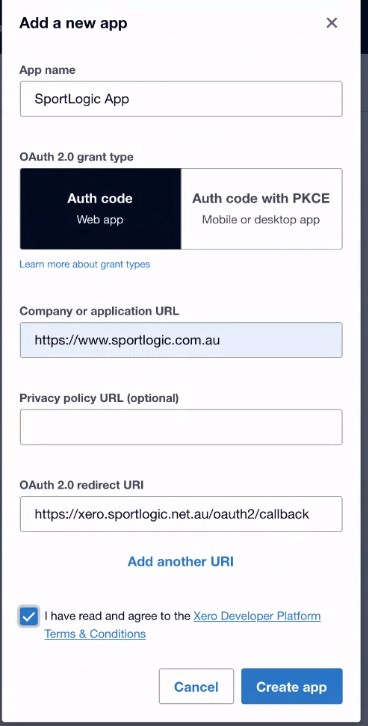
Click New app to create a new app. Enter information and click create App
Company URL: https://www.sportlogic.com.au
OAuth 2.0 redirect URL: https://xero.sportlogic.net.au/oauth2/callback
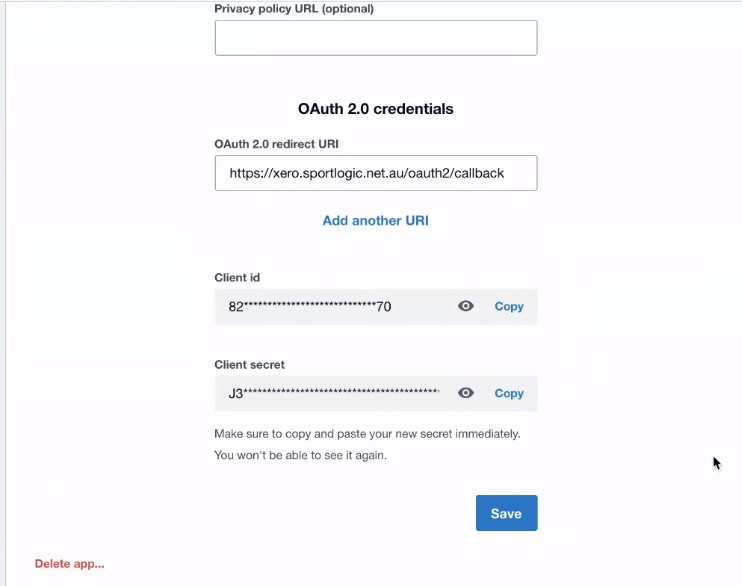
Generate a client Secret key from the below screen. Copy and paste client id and secret key to notepad and click SAVE.
(Note: Client secret key cannot be copied after clicking save so copy all information to notepad. However, it can be generated whenever required)
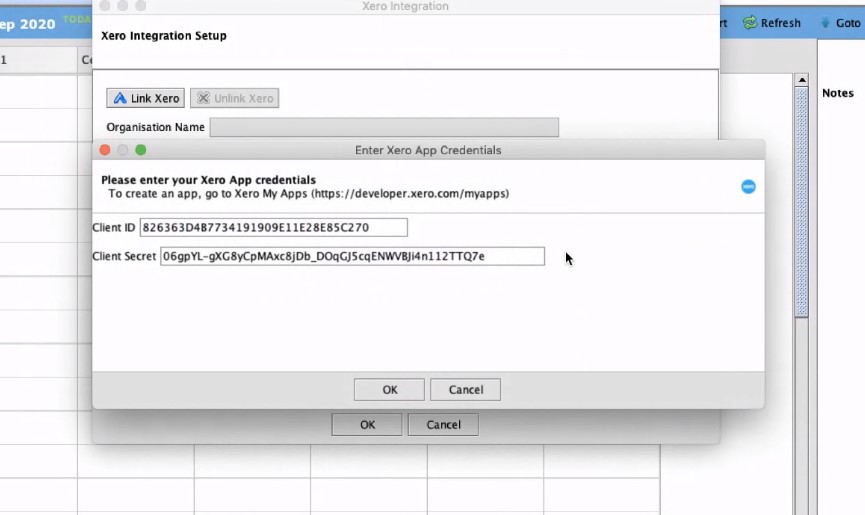
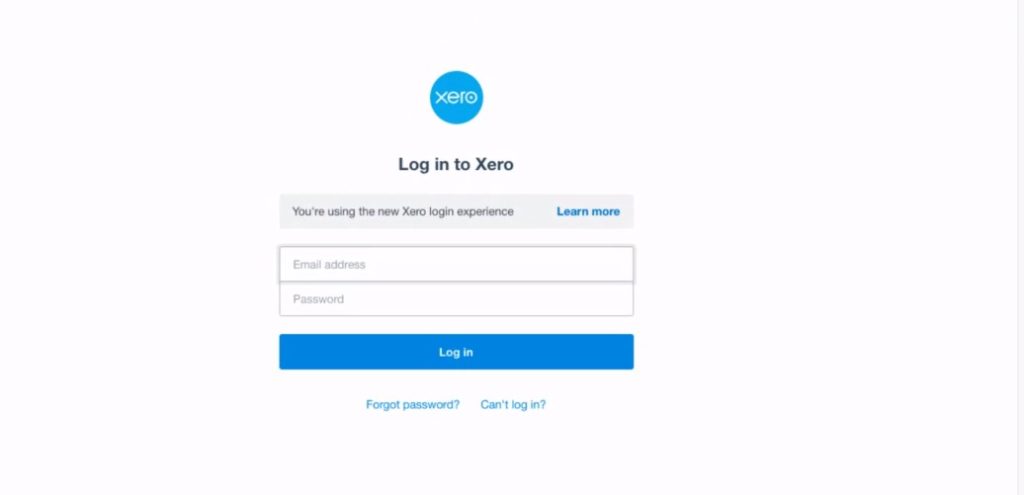
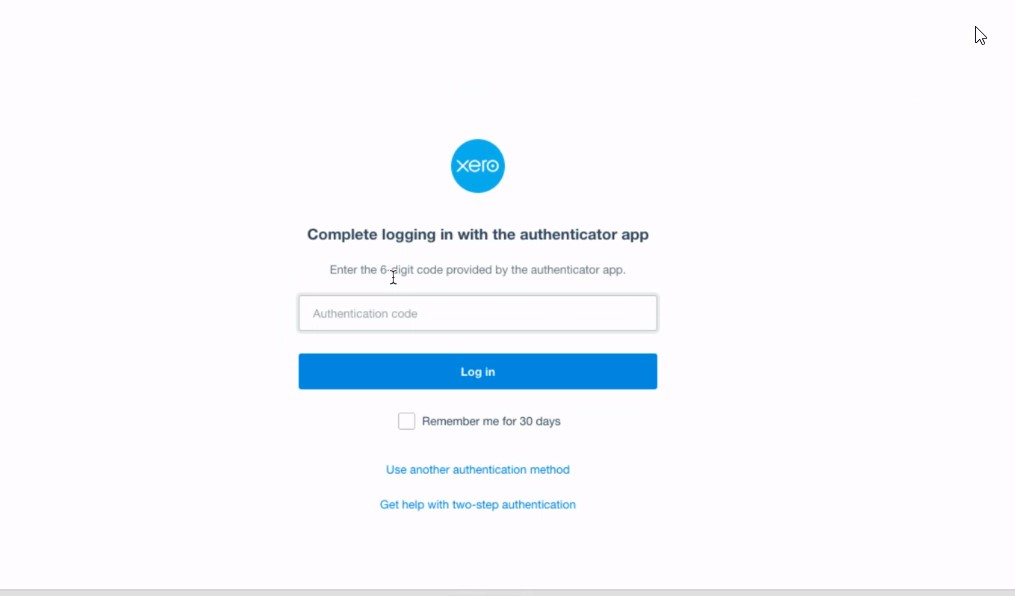
This will open the Xero Login page from within inTennis.
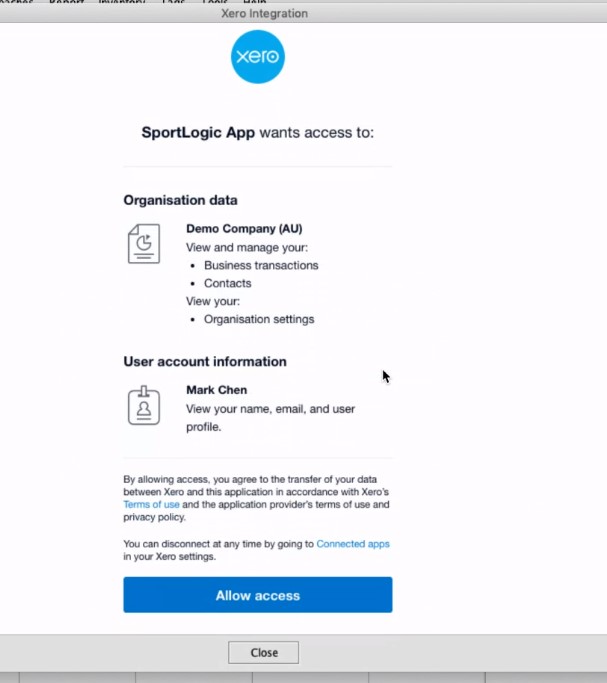
Login using the customer’s credentials and then click on Allow Access.
Xero Limitation: an app can support up to 25 connections. The same app credentials can be used to setup Xero integration, however we need to track if the 25 connections limit has been reached. There is no need to set up an app in customer’s Xero developer portal.
Proposal: instead of asking user to enter app Client ID and Client Secret, simply auto grab from AppServer. Let AppServer manage the app credentials.