SETTING UP THE INTERFACE
Goto developer.xero.com and click myapps and add an application . Select ‘Private’
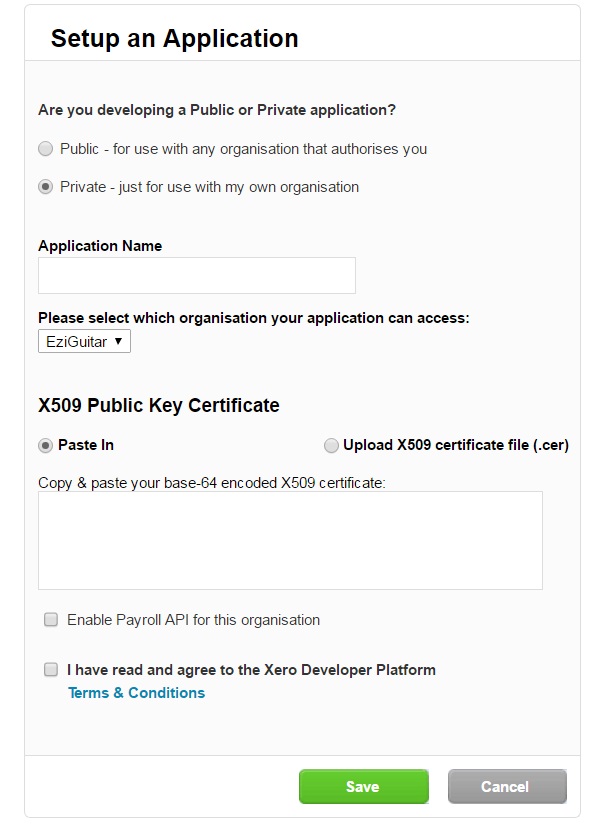
- Application Name: SportLogic ( or you can type in whatever is applicable)
- Enable Payroll API for this organization : Do not check this
- Paste the certificate from the Sportlogic help page and click save . it will generate a Consumer Key.
- Goto inTennis File>Config>Accounting Setup>Xero Integration
Paste the consumer key to link inTennis with Xero.
CREATING SPORTLOGIC CLEARING ACOUNT
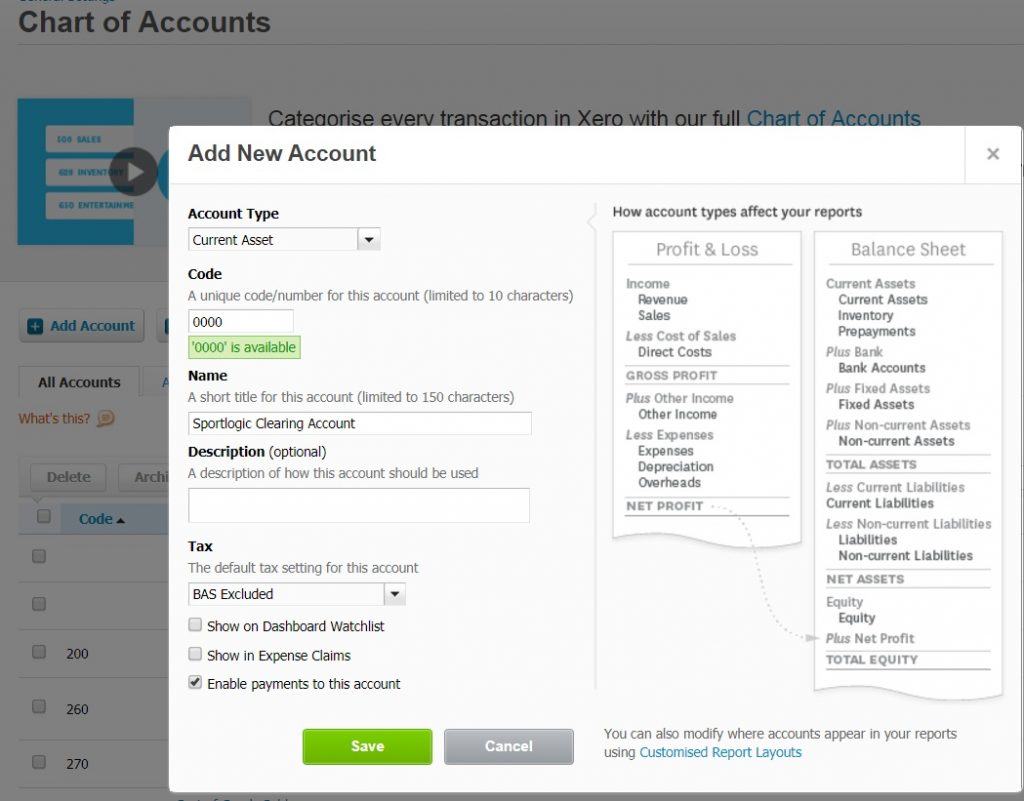
Now login normally to xero.com and Settings>Chart of accounts>Add Account
code : 0000
Name: Sportlogic Clearing Account
Check – Enable payments to this account and click save
MAPPING XERO ACCOUNTS
To Map Accounting>General Ledger Accounts then click on Map Xero Accounts
All Asset accounts should be mapped to Sportlogic clearing account (0000) as shown below.
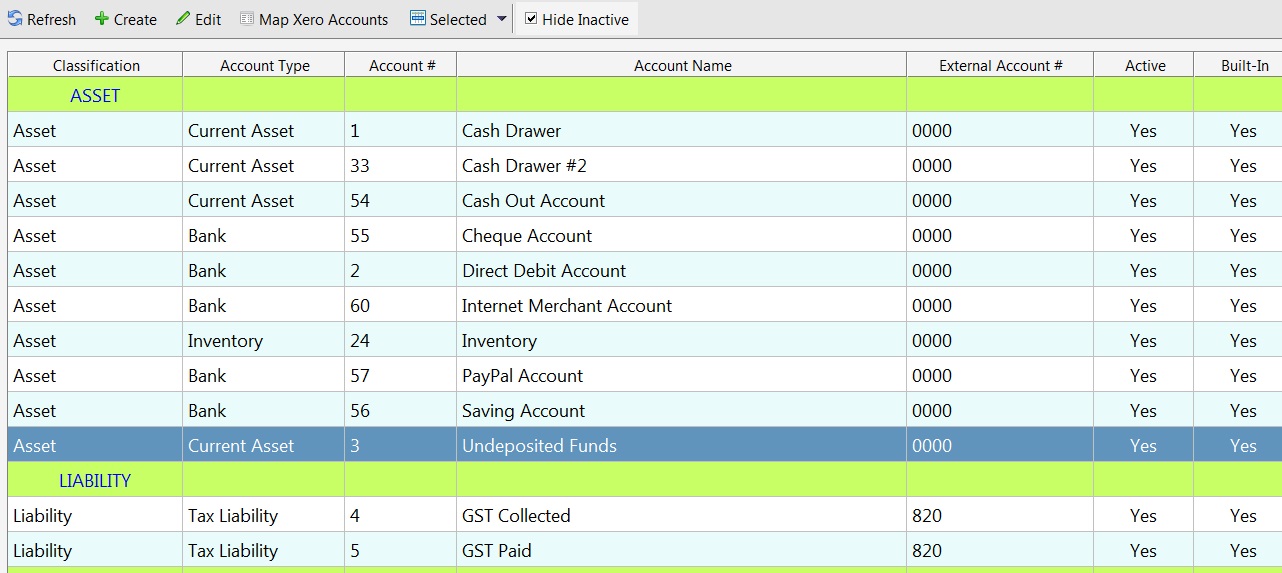
Also in xero click on the Liabilities tab to find the CODE for GST . Enter that number for both GST Collected and CST Paid.